
The Viewer Advanced Filter window consists of 2 list boxes and 4 buttons. The user repeatedly double-clicks items in the Filter Addition list box to add them to the Resulting Filter list box.
Unlike the Basic Filter window, more options are available in the Advanced Filter window. Criteria can be joined using OR, in addition to AND; and parentheses can be used to group criteria together; for example, Account Status = Open AND (Account Type = Dedicated OR Account Type = Guardianship).
For text values, in addition to the normal relation operators such as =, there are operators Begins With, Ends With, and Contains, permitting filters such as the first letters of names, or portions of Organization names. (Text comparisons are not case-sensitive; Open is considered the same as open and OPEN.)
Also unlike the Basic Filter window, the user can specify values in addition to those included in the list box, by double-clicking on the list box item User-specified value. When this value is a date, a calendar month control displays
.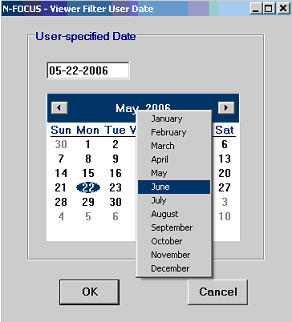
The date can be specified by either typing in the edit box, or selecting a date on the control. Clicking on the month name in the control displays a context menu displaying all 12 months from which to select; clicking on the year displays a spin control for changing the year, clicking on a day selects it, and clicking the OK button selects that date.
Clicking the Back button on the Advanced Filter window removes the last line in the Resulting Filter list box.
Clicking the Clear button removes all lines from the Resulting Filter list box.
The new filter can be applied by either double-clicking the DONE item when it appears in the Filter Addition list box, or by clicking the OK button. In either case, the filter is applied to the document, which is re-displayed in the Viewer.
(07-10-06)